Audit Your Board Before You Buy Another: A Quick 2026 Keyboard Checkup
This is the part of Keyboard Concierge I wish more people used before checkout: a quick, honest audit of the board already on the desk. Most typing problems do not require a new keyboard. They require a closer look at keycaps, stabilizers, switch weight, wrist angle, desk height, and the layout habits you have quietly built around your setup.
The audit takes about ten minutes. You will need your current keyboard, a flat surface, and a willingness to notice small annoyances you have learned to ignore. Score each check from 0 to 2. A zero means things are fine. A one means there is a mild annoyance worth fixing. A two means this is daily friction.
How the Audit Works
Add up your six scores. The total will range from 0 to 12. Do not treat it as a grade. Treat it as a repair map.
| Check | 0 | 1 | 2 |
|---|---|---|---|
| Keycap wear | Even texture, no shine | Light shine on home keys | Heavy shine, smooth spots, or cracked caps |
| Stabilizer rattle | Quiet and tight | Slight tick on modifiers | Loud rattle or sticking spacebar |
| Switch weight | Comfortable for a full day | Tiring by late afternoon | Finger or wrist fatigue after short sessions |
| Wrist angle | Neutral, relaxed | Slight bend or hover | Noticeable extension or pressure |
| Desk height | Forearms roughly level | Minor reach or shrug | Shoulders or wrists complain daily |
| Layout habits | Keys match your work | A few awkward reaches | Constant layer or shortcut workarounds |
Keycap Wear: The Shine Is a Clue
Look at your most-used keys. If the texture has gone smooth and the legends are fading, the caps are telling you something about use and material. Shine is normal, especially on ABS plastic, but heavy shine can change feel and grip. Worn caps also make a board feel older than it is.
Simple fix: clean the caps and consider a fresh set. If the board otherwise feels good, new keycaps are a cheap reset. Upgrade if the caps are cracked, the stems are loose, or the layout is hard to re-cap affordably.
Stabilizer Rattle: The Spacebar Test
Press the spacebar, Enter, and both Shift keys slowly, then quickly. Listen for ticking, scraping, or a hollow rattle. A good stabilizer sounds controlled. A bad one sounds like a tiny shopping cart with a wobbly wheel.
Simple fix: re-lube or tune the stabilizers if the board supports it. Check that the wires are seated and the housings are snug. Upgrade only if the stabilizers are nonstandard, damaged, or impossible to access without rebuilding the whole board.
Switch Weight: Tired Hands Tell the Truth
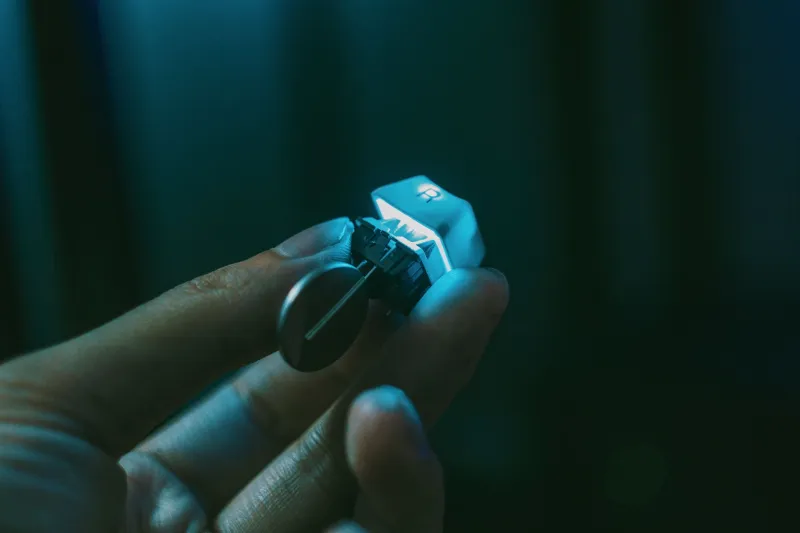
Switch weight is personal. A heavy tactile switch can feel wonderful for five minutes and exhausting by 4 p.m. If your fingers feel stiff after a long writing session, or if you are bottoming out hard just to get feedback, the switch may be working against you.
Simple fix: try a lighter spring or a different switch if your board is hot-swappable. If it is soldered, a new board or a switch swap service may be more sensible than living with fatigue. Upgrade if the weight is wrong for your daily workload, not just different from what a review called “endgame.”
Wrist Angle: Stop Hovering
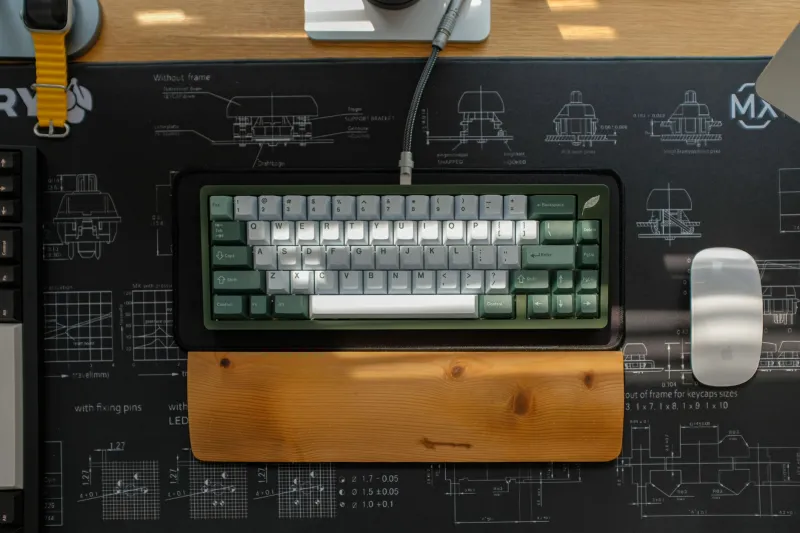
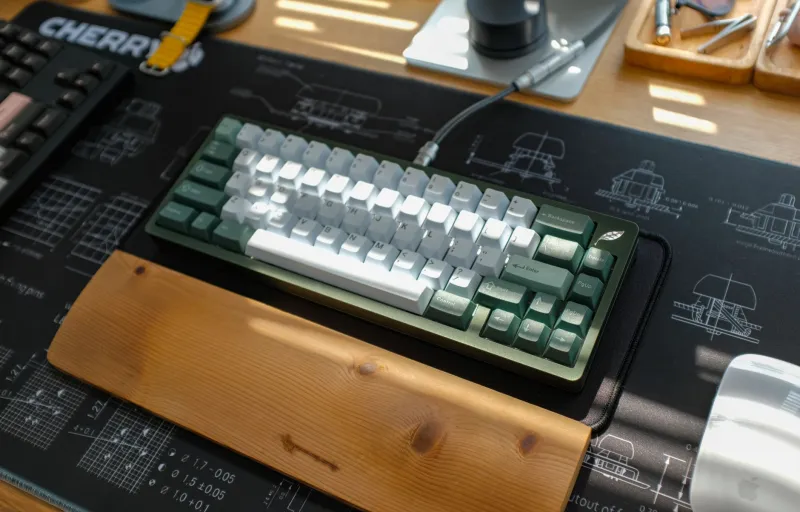
Rest your hands on the board as you normally type. Your wrists should be roughly neutral, not bent upward or pressed into the desk edge. A wrist rest can help, but it should support the heel of your hand without forcing your wrists into a sharper angle.
Simple fix: adjust your chair height, add a slim wrist rest, or move the keyboard closer. Upgrade if the board is so tall that you cannot get a neutral angle without discomfort. A lower-profile board or a different case angle may solve more than a new keycap set.
Desk Height and Chair Relationship
Keyboard comfort is not just a keyboard problem. If your desk is too high, your shoulders shrug. If your chair is too low, your wrists bend. Sit with your feet flat, let your forearms rest near level, and check whether your keyboard is actually within easy reach.
Simple fix: raise your chair, lower your desk if possible, or use a keyboard tray. Upgrade the keyboard only after you have checked the desk and chair. A new board cannot fix a desk that puts your body in a bad position.
Layout Habits: The Silent Score
Finally, watch yourself work for a few minutes. Do you constantly reach for arrow keys that are not there? Do you hesitate before function keys? Do you use a layer shortcut and then forget which layer you are on? That is layout friction, and it counts.
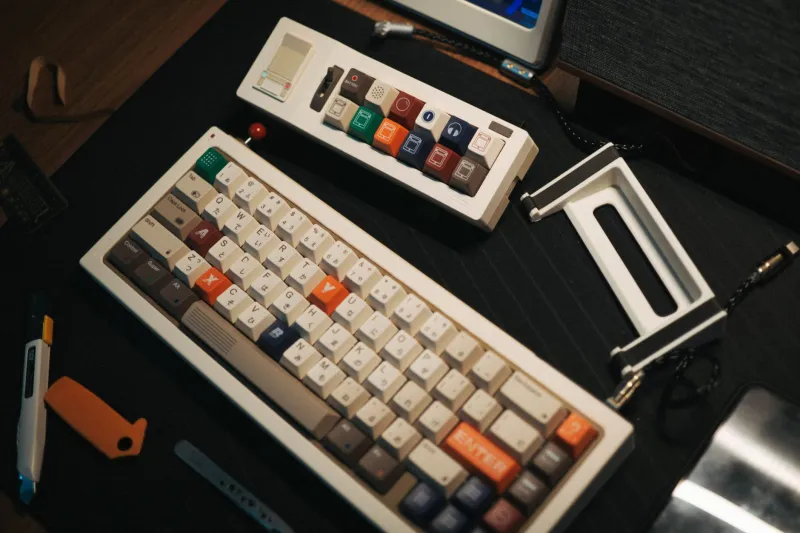
Simple fix: remap one or two keys, print a small layer map, or move to a layout with the keys you use most. Upgrade if your daily work depends on keys your board makes awkward. A 65% or 75% may be a better fit than forcing a 60% to behave like a TKL.
Reading Your Score
A total of 0 to 3 means your board is probably fine. Clean it, tune what you can, and spend your money elsewhere. A score of 4 to 7 suggests targeted fixes: new keycaps, stabilizer tuning, a wrist rest, or a keymap change. A score of 8 to 12 means the board is actively asking for attention. That does not automatically mean “buy new.” It means diagnose first, then decide whether adjustment or replacement is the better spend.
Adjust First, Upgrade Second
The concierge rule is simple: fix the cheap thing before you buy the expensive thing. Clean the caps. Tune the stabilizers. Check your chair. Try a lighter switch if you can. Remap the key that annoys you. Only then ask whether a new board would solve a problem the old one cannot.
A ten-minute audit will not cure every typing complaint, but it will stop you from buying another keyboard to solve a desk-height problem, a worn keycap problem, or a layout mismatch you could fix for less. That is less desk regret and more actual typing comfort — which is the whole point.