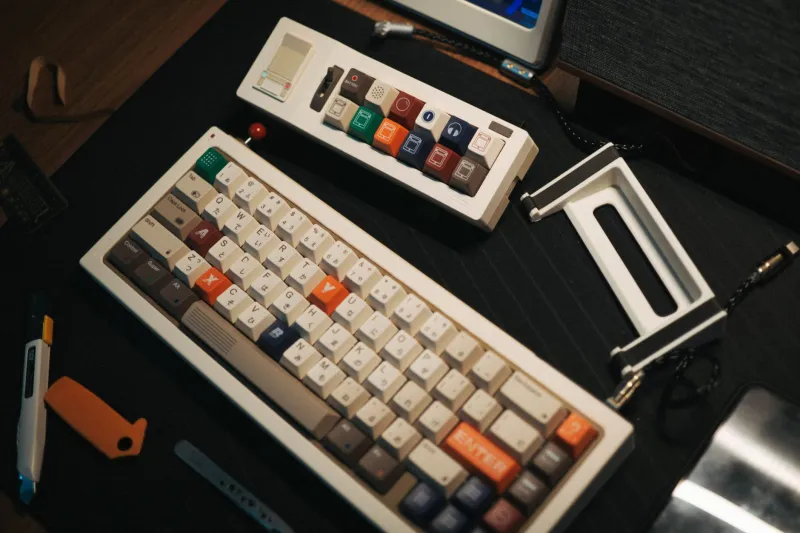
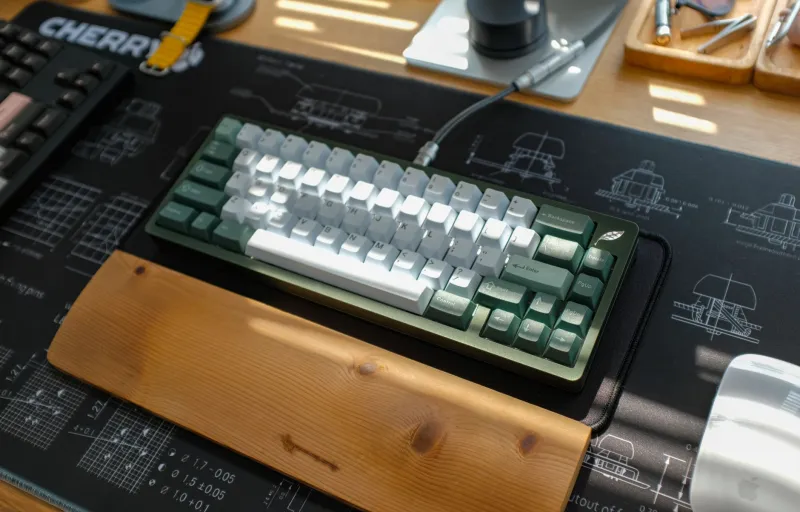
Small Board, Big Tax: The Hidden Costs of Ultra-Compact Keyboards
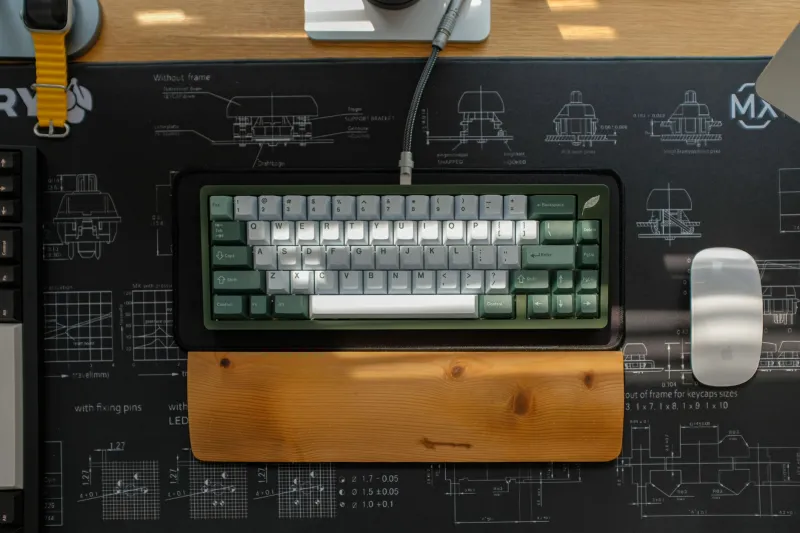
Ultra-compact keyboards sell a fantasy: a desk with room to breathe, a setup that looks intentional, and a board that whispers “I have my life together.” For plenty of hobbyists, that fantasy holds up. For a lot of US writers, coders, and hybrid workers, though, the bill arrives later — in missed shortcuts, awkward arrow-key gymnastics, and layer combinations that never quite become muscle memory.
This is not an anti-small-keyboard rant. It is a concierge-style reality check. A 60% board can be the right answer. It just should not be the default answer.
The Desk-Space Discount
Let us give the small layout its due. A 60% keyboard frees up real estate for a larger mouse pad, a notebook, a microphone, or just a cup of coffee that does not crowd your wrist. It travels well. It looks focused. If you spend most of your day in a single application and rarely reach for function keys or navigation clusters, the trade-off can be genuinely minor.
The problem starts when people buy a 60% because it looks minimal, then discover that their work is not minimal at all. Spreadsheets, code editors, writing apps, video calls, and browser tabs all have their own key demands. The smaller the board, the more of those demands get pushed onto layers and shortcuts.
Where 60% Boards Start Charging You
The first cost is missing dedicated keys. A true 60% layout typically drops the function row, the arrow cluster, and the navigation block. That means no standalone Home, End, Page Up, or Page Down. It also usually means no physical arrow keys, unless the board uses a compressed arrangement or a split-spacebar trick.
For a novelist drafting prose, that may be fine. For a coder jumping through lines and blocks, or a hybrid worker living in spreadsheets, it can be a small friction point that repeats hundreds of times a day. Small frictions are not small when they repeat.
Arrow Keys Are Not a Personality Trait
Arrow-key workarounds are where many 60% owners quietly lose speed. Some boards map arrows to a layer under IJKL or WASD. Others use a function key plus a cluster. A few rely on tap-and-hold behavior. All of these can work. None of them are free.
If you edit text for a living, arrows are not decorative. They are navigation. You use them to nudge a cursor, select a phrase, fix a formula, or move through code. When arrows live on a layer, every small movement includes a mental gear shift. The gear shift gets faster with practice, but it never disappears completely.
Layers: Powerful, Until They Aren’t
Layers are the secret weapon of compact keyboards. They let one physical key do several jobs, and a well-designed layer can feel elegant. The catch is that layers ask you to remember context. Was that the media layer or the navigation layer? Did I hold the right modifier? Why did my screenshot shortcut turn into a brightness change?
For hobbyists who enjoy tuning keymaps, that memory exercise is part of the fun. For everyone else, layer confusion is a tax on attention. The best layer setup is not the most clever one. It is the one you can use without narrating it to yourself.
The Concierge Layout Matrix
Here is a practical way to think about the common sizes. The goal is not to crown a winner. The goal is to match the board to the job.
| Layout | Best for | Watch-outs | Concierge call |
|---|---|---|---|
| 60% | Minimalist desks, travel, single-app focus, hobbyists who enjoy layers | No dedicated arrows, function row, or nav cluster; layer dependence | Buy only if you genuinely enjoy remapping and rarely need navigation keys |
| 65% | Writers and hybrid workers who want arrows and a compact footprint | Still compressed; function row and nav keys may live on layers | The sweet spot for many people who want small but not punishing |
| 75% | Coders, spreadsheet users, and anyone who wants function keys without a full TKL | Slightly wider; some layouts crowd the right side | The safest “one board” choice for mixed work |
| TKL | Heavy shortcut users, editors, finance and data work, people who hate layers | Takes more desk space; no numpad | The low-drama workhorse if navigation keys are part of your day |
A Smarter Way to Shrink
Before you downsize, track your actual key use for a week. Not your aspirational key use — your real one. Count how often you touch arrows, Home, End, Delete, function keys, and Page Up or Page Down. If those keys show up constantly, a 60% board is asking you to change your workflow to fit a product category.
If you still want to go small, choose a board with a thoughtful default layer, useful split-spacebar options, and keycaps that make secondary legends easy to read. Consider a 65% if arrows matter. Consider a 75% if function keys matter. And if you are a coder who lives on shortcuts, do not let a minimalist desk photo talk you out of a TKL.
The best compact keyboard is not the smallest one you can tolerate. It is the smallest one that does not make your daily work feel like a puzzle. That is the concierge standard: less desk clutter, yes, but not at the cost of your hands, your speed, or your sanity.